To verify Shadowrocket, open its App Store product page and check the full developer name, official icon and app ID in the link. Don’t rely on search ranking or the name shown on your Home Screen alone. The App Store steps in this guide are for iPhone and iPad; find Mac (Apple silicon and Intel), Windows, Android and Linux downloads on this site’s download page. Use these checks before purchasing or to review an installed app, and distinguish app identity from whether your existing configuration works.
1. Check these three identifying details
Search results can help you find a candidate app, but they can’t replace checking its product page. App names, icon designs and search descriptions can look alike, so verify the developer, icon and app ID together. Compare the names and number below directly; you don’t need to purchase the app or import a configuration first.
| Check | What to verify | Where to find it |
|---|---|---|
| Product name | Shadowrocket | Title on the App Store product page |
| Developer | Shadow Launch Technology Limited | Developer details on the product page; scroll to the information section if needed |
| Official icon | A rocket outlined in blue and purple on a white background | Compare the icon at the top of the product page with the official icon below |
| App ID | 932747118 | id932747118 in the product share link |
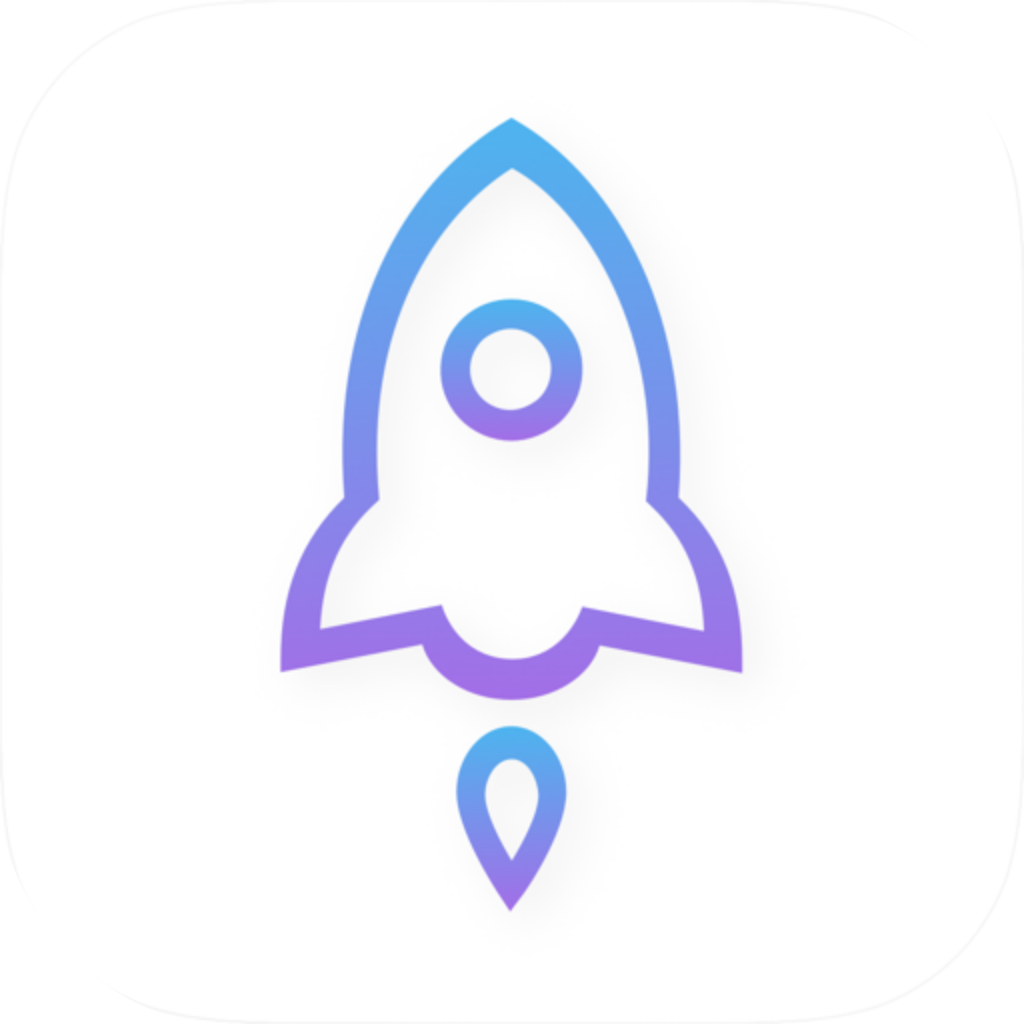
Bottom line: verify the ID before paying
If the developer name or app ID doesn’t match, stop the purchase process and return to this site’s download page to choose the correct platform. Don’t use a similar-looking icon to fill in missing information.
2. Four checks before buying on iPhone or iPad
Start in the App Store and open the full product page; don’t confirm a purchase from the search results. Store screens and button positions can vary with system language, so check the product title, developer field and share link.
-
Open the product page
Search for
Shadowrocketin the App Store and open a candidate app’s product page. You can also use the product page link below. Make sure it opens in the App Store, not an article in the search results. -
Check the developer
Confirm the developer is
Shadow Launch Technology Limited. If the name is truncated at the top, scroll to the product information and compare the full name, word by word. Don’t rely on seeing “Shadow” alone. -
Check the share link
On the product page, tap Share, choose Copy Link, and paste the link into Notes on your device. Confirm the host is
apps.apple.comand the path contains the completeid932747118, then compare the official icon. -
Install after verification
Once all three details match, follow the App Store prompts to purchase or redownload the app. The iPhone / iPad version costs $2.99 as a one-time purchase; Mac (Apple silicon and Intel), Windows, Android and Linux versions are free. For iPhone / iPad system requirements, refer to the App Store listing.
To verify the App Store listing directly, open the Shadowrocket App Store product page. To get the app for your device, visit the download page. The App Store steps for iPhone and iPad don’t apply to other platforms.
3. Understand the app ID and App Store link
The app ID identifies a product record in the App Store. The number to check is 932747118—not the full app name or a search term. The product address for this check is shown below; focus on the digits immediately after id.
https://apps.apple.com/us/app/shadowrocket/id932747118- Check the host first: It should be
apps.apple.com. The presence of “apple” or “shadowrocket” elsewhere in an address doesn’t make it an App Store product page. - Then check the product ID: The path must contain the exact
id932747118. A missing digit, an extra digit or a different number means it’s not this product record. - Read the region segment separately: In the example address,
/us/indicates the store region; it isn’t part of the app ID. The App Store may redirect you or show availability information based on your account’s region. - Query parameters don’t establish identity: Share links sometimes include parameters after a question mark. Verify the host and app ID in the path; don’t treat query parameters as proof of version or authorization.
Don’t rely on a string of digits in a screenshot instead of checking the actual link. A screenshot only shows what was on screen when it was taken; it can’t confirm which product page a button opens now. For a reliable check, use Share → Copy Link from the current product page and inspect the copied text. There’s no need to send anyone a full-screen screenshot that may contain personal information.
4. How to recheck an installed app
The name and icon on your Home Screen can help with an initial check, but they don’t replace the App Store record. If the app is already installed, return to the same App Store product record and check the button state. You don’t need to delete the app to verify it; before deleting, make sure any existing configuration and subscription details are safely stored.
- Open the App Store product page linked above and recheck the developer and app ID. Don’t rely on a similar search result you remember from before.
- If the product page shows Open, tap it and observe which app launches. This gives you a better way to match the product record to the installed app than looking for a similar name on your Home Screen.
- If you see the cloud download button, first check whether the Apple Account currently used for the App Store has an acquisition record for the app, then follow the store prompts.
- If the price still appears, don’t confirm another purchase right away. Check your purchased items or purchase history in the App Store account area, and confirm which account you used at the time.
Button states depend on the current account, device and installation status, so seeing a price doesn’t prove that the installed app isn’t genuine. Likewise, an app opening successfully doesn’t prove that the current App Store account has a purchase record. Check product identity, account history and device installation status separately instead of treating them as one issue.
5. Keep app verification separate from connection troubleshooting
Verifying Shadowrocket’s app identity doesn’t guarantee a connection. Connectivity still depends on your existing configuration, network conditions and routing settings. Home, Config and Settings are separate areas of the app, not proof of purchase. Having no working server on first launch, or being unable to access a destination after importing a configuration, doesn’t by itself show whether an app is genuine.
For example, under Global Routing on Home, Proxy, Direct and Config are different handling modes. The comparison below covers only these three settings to help explain connection behavior; none changes the App Store product ID or proves authorization. Scene relates to scene settings and isn’t needed to verify app identity.
Config
RecommendedHandle connections according to the rules in the currently enabled configuration. Which destinations use a proxy or connect directly depends on the rules and their associated policies; it can’t be reduced to a fixed geographic split.
Use when: You have a verified rules configuration and want to test connection behavior against it.
Proxy
Handle incoming client connections in the proxy mode. During troubleshooting, this can help distinguish rule selection issues from proxy connection issues; a valid server configuration of your own is still required.
Use when: You want to test the proxy path temporarily without relying on rule matches.
Direct
Handle connections in direct mode, without forwarding them through the selected proxy server. Reaching a webpage only confirms that the direct connection worked; it doesn’t mean the proxy configuration is working.
Use when: You want to compare direct connectivity on your current network and avoid mistaking a successful direct connection for a successful proxy connection.
Similarly, Settings → On Demand controls on-demand connections; it isn’t a genuine-app verification switch. Changing it won’t turn an app with a different app ID into Shadowrocket. To continue setting up the app, read the quick start guide. For importing and managing an existing subscription, see the subscription manual.
6. Common questions about search, pricing and redownloading
Is the first search result the genuine app?
Search ranking isn’t a way to verify an app. Open the product page and check Shadow Launch Technology Limited, the official icon and id932747118. Ranking, featured placement and search snippets aren’t part of the identity checks in this guide.
What if the developer name is cut off?
Scroll down to the product information and check the full name rather than relying on the truncated line at the top. If you still can’t confirm it, use the App Store product page linked in this article and check the result of Share → Copy Link again.
Is it normal for the store to show a currency other than US dollars?
The App Store displays the local currency and checkout amount for your store region. Check the confirmation screen before paying. There are two ways to get the app: iPhone / iPad costs $2.99 as a one-time purchase; Mac (Apple silicon and Intel), Windows, Android and Linux versions are free. Don’t identify the app by currency or price alone.
Can’t find it in search—has the app ID changed?
Not finding the app in search doesn’t mean its ID has changed. Open the known product page and read the App Store’s actual message, then check your account’s store region and device content restrictions. If the store says your device is incompatible, refer to the system requirements on the App Store page rather than guessing from search results.
Why does the app still show a price after I bought it?
First check the product ID, then make sure the Apple Account currently signed in to the App Store is the same one used for the original purchase, and review your purchase history. Don’t repeatedly confirm payment just to test the button. If the product identity matches but the purchase record is still unclear, use the purchase support option in the App Store.
Keep the checks in this order: verify the product record, then the developer and icon, then handle the purchase or redownload, and only then check the in-app configuration. This helps prevent account issues from being mistaken for app issues, or connection failures from being used to judge whether an app is genuine.